
You’re offline. This is a read only version of the page.

The Supplier Knowledge Base is a quick-access hub of articles, videos, and content designed to help you navigate ASI Supplier Central with confidence and efficiency.

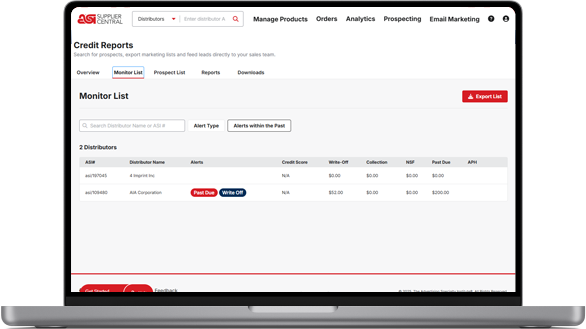
Click on the thumbnail to launch a video.

Expand a category to view our step by step articles!
To access Connect, please type https://connect.asicentral.com in the address bar of your browser (Google Chrome, Mozilla Firefox, Safari, Internet Explorer, etc).
Note: If you are using Internet Explorer, the minimum required version is Internet Explorer 9.
The Connect login page provides you with access to all of your ASI applications and sites through your single sign-on (ESP) account. Your Connect (ESP) login also applies to ASI Central and ASI Education.
Enter your ASI number, username and password in the appropriate boxes.
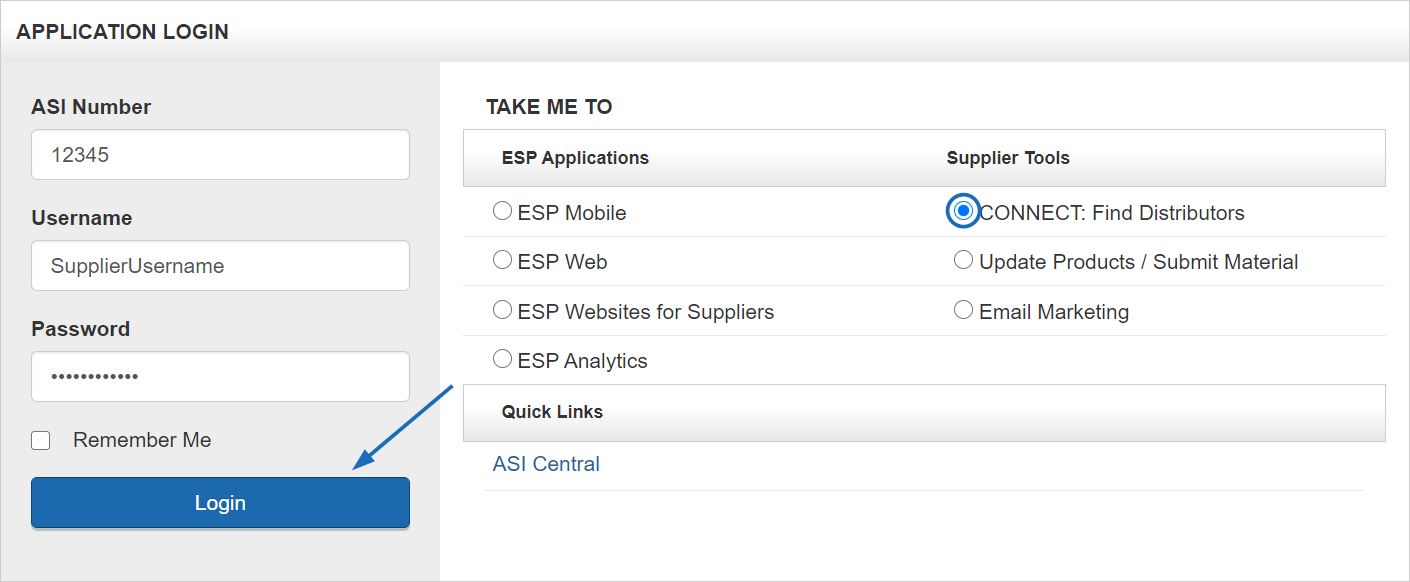
Before clicking on the Login button, you can select which application you would like to access by clicking on the corresponding radio button:
By checking the Remember Me box, Connect will store your ASI number and username for future logins.
If you need assistance logging in, there is a Need Assistance area below the Application Login section. The Need Assistance area contains three tabs:
Note: The first time you log in, you will be asked to sign the License Agreement. After reading the terms and conditions, you must check each checkbox at the bottom and then type your name in the Signature box before clicking on the Accept button. You will only see this information the first time you log in and after a release of updates.
Connect is on online tool that ASI Suppliers use to access distributor credit reports. Connect is updated daily by participating suppliers on distributor payment habits.
Yes, please contact your Connect Account Executive to schedule a training.
The Distributor Profile information can be viewed on the Credit report, Monitor Detail Report or the Distributor Comparison Analysis pages. To Access these pages, click on the distributor's ASI number anywhere in the application. This generates the >Distributor Quick View tool (pop-up window). At the bottom of the window, the Monitor Detail, Comparison Analysis and Credit Report buttons offer easy access to each report.
ASI has partnered with Experian to provide its members with commercial credit reports at a discounted rate. The Experian service is an excellent supplement to our industry-specific data, especially for finding information on non-ASI members. Their service provides another glance at how ASI members pay not only industry suppliers but commercial creditors as well. In addition, ASI Connect subscribers receive a 15% discount off normal Experian prices. To sign up for this service visit http://www.asicentral.com/experian.
The length of time a transaction remains on a distributor’s report is based on its severity. Collections under $1000 remain on the distributor’s report for 1 year. Any collections over $1000 remain for 7 years. Bankruptcies stay on the report permanently. Non-sufficient funds stay on the report for 1 year while past due information remains for 9 months. Paid data (average paying habits) stay on the report for 6 months before being stored in the previous six-month section of the report.
Yes, Connect’s single login eliminates the need to search for an outside link to access all your ASI applications, websites and tools. The login default is set to Connect’s Credit Check & Prospect functions under Supplier Tools. You can change this by selecting the radio button beside whichever option you’d like. If you’re already logged into Connect, select My Applications in the blue bar at the very top of the screen to choose your desired application from the dropdown list.
By clicking the blue Settings tab in the main navigation bar near the top of the screen, you can click on the Want More Features box to have an ASI representative contact you with information on upgrading.
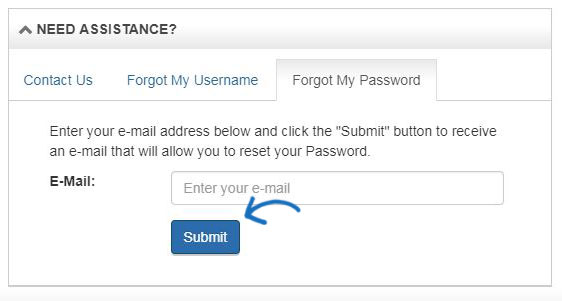
At the bottom of the Login page, click "Forgot My Username" or "Forgot My Password" to retrieve your login information. After entering your email address and clicking Submit on either tab, Connect will email your username or information to reset your password.
Yes, ASI suppliers who don't subscribe to Connect receive a free license with reporting capabilities only.
Fast Find, a semi-annual digital publication, has been dubbed the distributor “Yellow Pages” of the promotional products industry which contains:
Unlike other credit services, Connect is a source suppliers can trust for industry-specific credit information. You need to know how fast distributors pay suppliers, not whether the company president has a high personal credit card balance or if he is paying on his leases. Over 1,100 industry suppliers report both monthly and semi-annually about the distributors with whom they do business.
If you only use distributors’ references, you cannot be assured that you are getting accurate data about the distributor’s paying habits. Distributors may only provide you with the names of suppliers they paid on time and withhold those that they didn’t. That kind of biased information could really get you in trouble when extending credit. When you use ASI Connect, you can rest assured you’re making sound decisions based on the experiences of over 1,100 suppliers.
With ASI Connect, suppliers have instant access – 24 hours a day – to the critical financial data they need before extending credit. You’ll no longer have to waste your valuable time calling or faxing references and waiting for responses. With ASI Connect, you can pull up a distributor’s credit information and give them a decision while you still have them on the phone.
Yes, multiple licenses of Connect can be purchased for your company. Contact your ASI Sales representative to get started.
The last 100 distributors whose credit reports you viewed appear in chronological order, with the most recent on top.
Monitor Alerts are reported and refreshed daily. You can choose how you receive these results on the home page by clicking the blue Manage My Alerts link in the Monitor Alerts box or by clicking the Settings tab on any page. All included distributors can be viewed by selecting the See all Alerts in this List link or by clicking the Monitor List tab from any page in Connect.
While the Monitor Alerts include only credit data for the distributors you've reported on, the Daily Credit Alerts showcase data from all distributors in the Industry.
Yes, by clicking the Expanded View link at the bottom of the Daily Credit Alert section of the home page, subscribers of Connect Plus, Platinum and Prospect Hunter open the current Daily Credit Alert page. There, all tabs are expanded sections, detailing: Write-Offs, Collection Payments, Non-Sufficient Funds, Bankruptcy and Monthly Past Due Invoices. Previous days' data can be easily accessed by clicking the See Past Daily Alerts link. Past Daily Alerts from the last 90 days display. Clicking the blue date link opens each Daily Credit Alert page.
With our upgrade from Credit Connect to Connect, the option to receive Daily Credit Alert emails is on by default. If you don't want to receive the emails, you can click the blue Settings tab in the main navigation bar on any page in Connect and uncheck the Daily Credit Alert Email Settings checkbox.
The Daily Credit Alert email includes all distributors in the industry with reports of: Turn Overs/Write-offs, Collections, Non-sufficient Funds, Bankruptcy, Monthly Past Due Invoices and Important Notes.
Yes, the email address for all users is automatically populated based on company contact information but can be changed for each individual. After clicking the Settings tab, type the preferred address in the Monitor List Email and/or Daily Credit Alert Email Settings fields and click the blue Save button in the lower, right portion of the screen. Note: Changing an alert email address does not change the stored email address ASI has on record for your account.
You can click a distributor company name to open its Distributor Credit Report. Clicking a distributor's red ASI number anywhere also opens a Quick View box which gives the distributor's basic credit and contact information along with three buttons at the bottom for the company's Monitor Detail, Comparison Analysis and Credit Report. Choosing the Credit Report button takes you directly to the distributor's credit report. Choosing either of the other buttons also offers the option for you to toggle to the credit report via the blue link at the top of the page.
Notes can be accessed in the final section of the distributor credit report. They update in real time when posted or deleted and have a character limit of 150 characters. Once you begin typing in the Notes box, the sharing options become visible. You can make your notes personal, shared within your company only or shared with any supplier with a license to Connect.
Be aware that Notes will be reviewed by ASI Customer Service. If notes include inappropriate or foul language, the comment is rejected and will not display.
A Connect primary user has the ability to delete any note within their company. Non-primary subscribers can delete only the notes they've posted. The delete button will be invisible for a supplier who is not the owner of the note.
Notes are kept in the system for 18 months (before automatic removal) or until they are deleted by the user.
You can only post notes on a distributor's credit report if you've done business with that distributor and reported on the company within the previous 6 months.
Yes, you can compare the sales volume and average pay habits of one distributor to others in the industry by clicking the distributor ASI number anywhere in Connect. In the Quick View box that appears, just click the "Comparison Analysis" button. You could access the same page by clicking any distributor name in Connect and toggling from the Credit Report to the Distributor Comparison Analysis page via the blue link at the top of the screen.
Monthly Transaction Reports are due the 7th of each month for the trailing month. When no monthly report has been received by the 7th, the next time you log into Connect, you'll see two alerts: one consistent and one dismissed.
Submitting past due information monthly gives suppliers a more accurate and timely view of the distributors credit status and in turn, may expedite payment to you.
When you neglect to send your Semi-Annual Transaction Reports, you receive a reminder alert when you log into Connect, indicating your report is past due. To help you avoid a $295.00 penalty, you're also sent a Semi-Annual Report reminder. This report can be filled out electronically, using your accounting software. Or you can download ASI's Excel template to key in your data.
Yes, a link to Report a Single Transaction appears to the right of the green Upload a New Report button on the home page. By clicking this link, you open a page where you can easily enter information about the transaction you wish to report. The same page can be found by clicking the My Reports tab on any page in Connect and selecting Report a Single Transaction from the dropdown list. After filling in your customer information, transaction detail and transaction type fields, click the blue Submit button near the bottom of the page to send it to ASI.
Suppliers have three options for sharing their transactional data with ASI Connect.
ASI grabs the file and processes it within 7-10 business days. If there are errors in the material upload, you'll receive an email and/or on-screen acknowledgment requesting you to go back into the system to fix only the issues in error.
When you receive a notification of errors in your report you can go to the MY REPORTS tab in the navigation bar at the top of the page. A list of your uploaded reports will display and those reports that contain errors will display an alert symbol. Click the “View Report” link to show all of the transactions uploaded in that report. We show the alert icon next to those transactions which are invalid and need resolution before they can be processed. You can fix the issues with an alert and then re-upload them.
No, in order for Connect to provide an accurate credit history, subsequent payments do not negate late payments. However, any positive data submitted will also appear on the distributor's report.
Typically, reported data displays by the next morning. However, in some cases, it may take 24-48 hours.
Click here to view the Required Fields for Reporting.
All report types have unique requirements. The Upload Wizard will give you an error message stating all required fields are not filled in. This prevents you from uploading the wrong report type.
Yes, Connect does not receive your report until it has been submitted.
No, when using the Upload Wizard, you're given the option to scroll through each uploaded transaction on your report by clicking the Next or Previous link. There, you can delete any transactions you don't wish to include in your report. However, once you hit the Submit button, you cannot make revisions to the report. If you find that you've submitted a transaction that needs to be deleted, you can email the ASI credit team at creditreporting@asicentral.com.
As long as the users upload different report types, multiple users can upload at the same time.All report names must be unique. If multiple users try to upload the same report, Connect will not accept them.
Yes, reporting suppliers can download the Proud Connect Subscriber digital seal on the Report a Single Transaction page of Connect.
Yes, as with CreditConnect, you can export your credit information from Profit Maker directly into Connect. Search “Profit Maker” in the ASI Knowledge Base for instructions.
This feature is not available for ASI SmartBooks at this time.
There are a variety of self-help tools that you can access via the internet including YouTube videos.
To guarantee the integrity of the Monitor List, only primary Connect users are permitted to add and delete distributors. The list is available as a global read-only list to other (basic) users. If a company has two primary contacts, both primaries can edit the shared list.
Yes, you are able to manage the settings of your Monitor List. By default, distributors are listed according to the severity of suppliers' reports: 1) Write-offs, 2) Collections, 3) Non-Sufficient Funds, 4) Past Due Payments, 5) Average Pay Habits and 6) Notes. However, you can click any header at the top of each column on the Monitor List page to reorder data from highest to lowest or lowest to highest. You can also choose which information you wish to monitor. By clicking the Settings tab, you can choose whether to display all distributors or only those with alerts and monitor changes within the past 7, 30, 90 or 180 days.
No, the list is named Monitor List for all users.
No, any distributor you report on will be automatically added to your Monitor List.
No, once a distributor has been removed from the Monitor List by the supplier primary contact, Connect will not add the company back to the list. If you'd like the company to be re-added, type the distributor ASI number or company name in the Distributor Look Up box. Connect's type-ahead feature will start displaying matches after you enter one character. Select your desired company from the dropdown list and click Go. Above the graph on the Credit Report page, click the green +Add to Monitor List button. You could also click the Monitor List tab and enter the ASI number or company name in the search box and just click the Add button.
When you report on a distributor, the company is automatically added to your Monitor List. If you've removed a company and would like to re-add them, click the Monitor List tab and type a distributor ASI number or company name into the search box. Connect's type-ahead feature will display possible matches starting after just one character. Select your match from the dropdown list and click the Add button. You can also add distributors from any page in Connect by typing the distributor ASI number or company name in the Distributor Look Up box, selecting your desired company from the dropdown list and clicking Go. Above the graph on the Credit Report page, click the green +Add to Monitor List button.
The far right column of your Monitor List is the Remove column. Click the X in the row of the distributor you wish to remove.
All alerts have a triangle or notepad icon. When you hover over an alert, a tool tip displays the type of alert that applies to that distributor company. By default, alerts display in descending order of severity.
Delisted or terminated distributors are automatically removed from your Monitor List 6 months after the date of delist or termination.
When you click the Notes icon in the first column of the Monitor List, details describing transactions with the selected distributor display. The number of notes appears in parentheses at the top of the box. You can scroll up or down to read all notes posted. By clicking any of the three buttons at the bottom of the popup window, you can also access the distributor's Monitor Detail Report, Comparison Analysis or Credit Report.
ASI does not add distributors to the list. You choose the companies you wish to add to Prospect Lists. Each licensed user has their own list. You can search for distributors through the search bar at the top of the Prospect List screen.
Yes, you can export your Prospect List in Excel and PDF formats by clicking the Export List button near the top of the page.
Connect enables you to add up to 100 distributor companies to your Prospect List.
With Advanced Search, you can search for distributors by company and/or executive name, phone number, location, sales volume, number of employees, average pay habits, product lines and customer types. You can also filter results to display distributors from one or multiple lists: ASI Top 40 Distributors, ASI Power 50 Distributors, Multi-Million Dollar Roundtable Members, ASI Apparel Companies and Canadian Distributors. In addition, you can include distributors who've shown high interest in any specific ESP product line of your choosing during the last 30, 60 or 90 days.
Yes, in the Distributor Profile – on the Credit Report, Monitor Detail or Comparison Analysis page – you can click the link called “View this Distributor's top ESP product categories” to see a list of popular product categories searched in ESP by that specific distributor company. The results can be displayed for the past 30 days, 60 days, 90 days or 1 year by choosing from the dropdown list. The default is 60 days.
ESP looks at the average number of searches in each product category. Any distributor company that searches a category higher than the average is considered to have a high interest and will appear as part of the search results.
Yes, by clicking the Modify Search link at the top of the Advanced Search Results screen, or by clicking the browser's back button, you can modify your advanced search criteria. All of your most recently completed fields will be auto-filled and ready for changes.
Advanced Search Results return a maximum of 2000 records. However, by downloading through Prospect Hunter, Prospecting and Prospect Hunter subscribers can purchase and save a copy of all available records.
Prospect Hunter allows suppliers to download every record from their Advanced Search results into a printable marketing list in .xls (Excel), .csv or .txt file formats. You can also add elements including phone numbers, average pay habits, total company sales volume, Ad Specialty sales volume, credit score and the distributor's top 5 searched products.
After completing your Prospect Hunter purchase, you're taken to your List Details. Click the Download List button in the lower right corner of the screen to automatically download the list in your previously-selected format.
No, when you download a list from Prospect Hunter, the list is saved and available for access and re-download for 90 days after purchase. The lists can be accessed by selecting the Settings tab in the main navigation bar near the top of the screen and clicking the Download Manager link. A list of all reports purchased during the previous 90 days will display in chronological order with the newest on top. Click the Transaction ID link to view the specific details of the report including the search criteria used and the payment method and information. Click the Download list button to access the report.
A purchased list may be used one time only. If you want to reuse a list, you must run a new search and purchase the updated list through Prospect Hunter.
Yes, in order to download from Prospect Hunter, your search results must contain 5 or more active distributors.
The Connect homepage provides an overview of distributor credit information, reporting capabilities and alerts. At the top of the page is the Application Toolbar, which is a stationary toolbar in Connect. This toolbar enables you to navigate to other applications, manage your ESP account information, logout, and more.

On the Applications Toolbar you will see a greeting, as well as:
The Distributor Lookup box enables you to search for any distributor by ASI number or company name. This box contains search leading text, meaning that as you begin to type letters or numbers, all matching results which contains matching information will be displayed.

To display branches of the same distributor, check the Branches box.
If you are using Connect Prospecting, Connect Platinum, or Prospect Hunter, you are able to use the Advanced Search link to search for distributor companies who meet the sales, size, pay habit, customer type, location, interest in your product lines in ESP or other criteria of your choosing.
This toolbar is also available on every page of Connect. By clicking each button, you can access and modify the information in that section. The availability of sections may vary based on your Connect subscription.

These sections are:
Beneath the main navigation bar, the month and year of your last transaction report appears. If a report is past due, a convenient reminder appears to the right of the date in orange.

Reporting is your chance to rate your experiences with distributors.
By clicking the green Upload a New Report button (or the My Reports tab), you can easily submit your transaction reports to ASI via API, FTP or our Upload Wizard. You may also report a single transaction by clicking the blue link.
Beneath the report upload options, the average percent of the distributor customers past 90+ days for the preceding 12 reported months appears in a graph.
Hovering over any month/dot in the green line shows that month's percentage. The red line indicates the industry average, which is displayed by default. This comparison can be turned off by unchecking the box in the lower, left corner.
Next, the Average Credit Score From Your Last Report shows the average score of all distributors you have reported on in the previous month on a color-coded scale, indicating the credit risk level from high to low.

My Credit Summary assesses the reported distributors’ credit ratings within the past twelve months. The highest and lowest rated distributors appear with clickable red ASI number links which generate each company's Quick View credit summary. In the event of a tie, both distributors display as the highest or lowest. In the lower part of the My Credit Summary section, you will see the percent of reported distributors in each risk group.

The Monitor Alert (Top 50) shows the fifty most recent alerts for all distributors that you have previously reported on and kept in your Monitor List. Only the primary contact at your company can remove a distributor from the list.

You can change your Monitor List settings – including which distributors to display (only those with alerts or all), the time frame to monitor (from 7 to 180 days) and whether they receive the Monitor List email - by clicking the blue Manage My Alerts link in the upper, right corner or by clicking the Settings tab in the main navigation bar. The alert email address can also be changed for each user. This will not change the email address associated with your account.
To view all distributors in the Monitor List, you can click the See all Alerts in this List link. By default, distributors are listed according to the severity of their alerts.
Directly below this is the Recently Viewed Distributors which will display the distributors' ASI numbers, company name, and credit score at a glance. By default, the distributors will be listed in order from most to least recently viewed. To see the last 100 distributors in the list, you need only click the See all Recently Viewed link.

In both the Monitor List and Recently Viewed Distributor sections, clicking on the distributor's ASI number will open the Distributor Quick View.
The Daily Credit Alert displays all distributors in the industry with alerts that day in five different categories. You can click on the corresponding arrow to expand or collapse the section. The categories are:

The Expanded View opens every alert section on one easy-to-navigate page. The See Past Daily Alerts link, also accessible on the Expanded View page, gives access to the last 90 days of reported Daily Credit Alerts.